Overview
From giant forms to screens that guide the work
EuGestor runs quotes, service orders, contracts, inventory and billing for electronic security companies. The system worked, but its screens were huge and confusing: I redesigned the whole system, module by module.
The problem
Giant forms, with dozens of fields at once and no clear order. Learning the system depended on the support team.
What I did
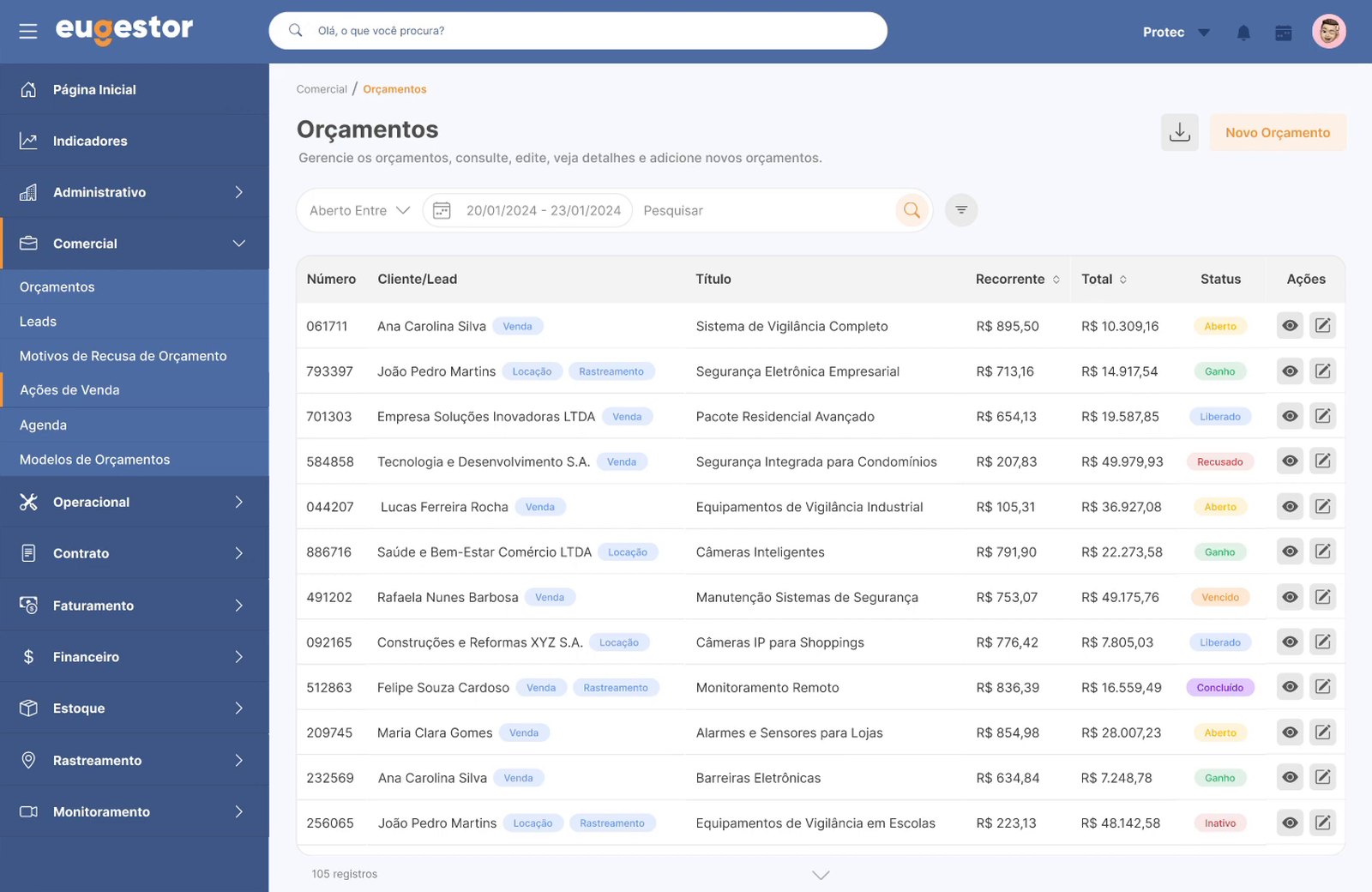
I redesigned the whole system on a single visual base. Here are two examples: quotes and service order management.
The outcome
Shorter, organized screens that guide people through their work and make the system easy to use.
The solution
A whole system redesigned, screen by screen
Old vs. new
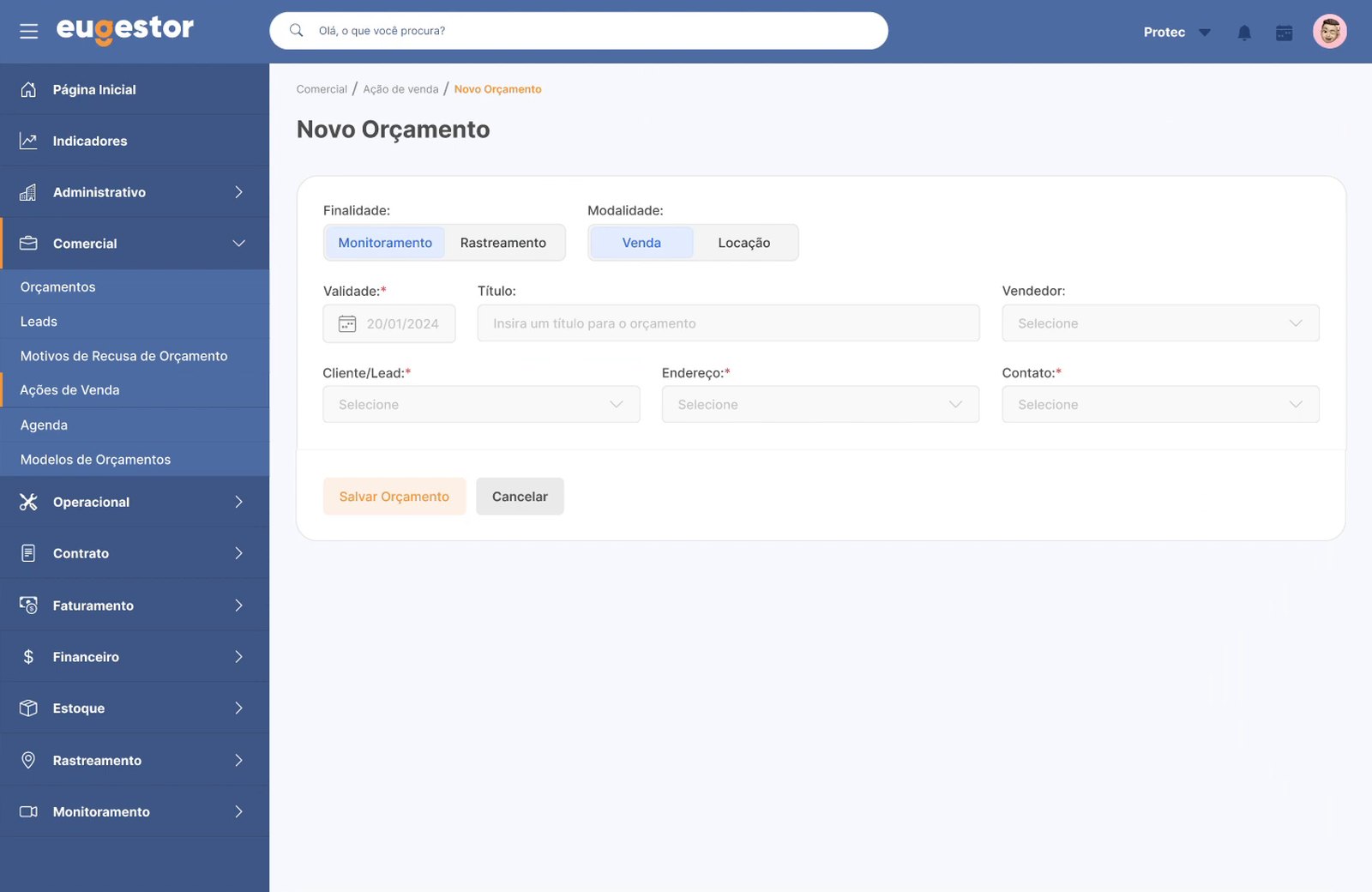
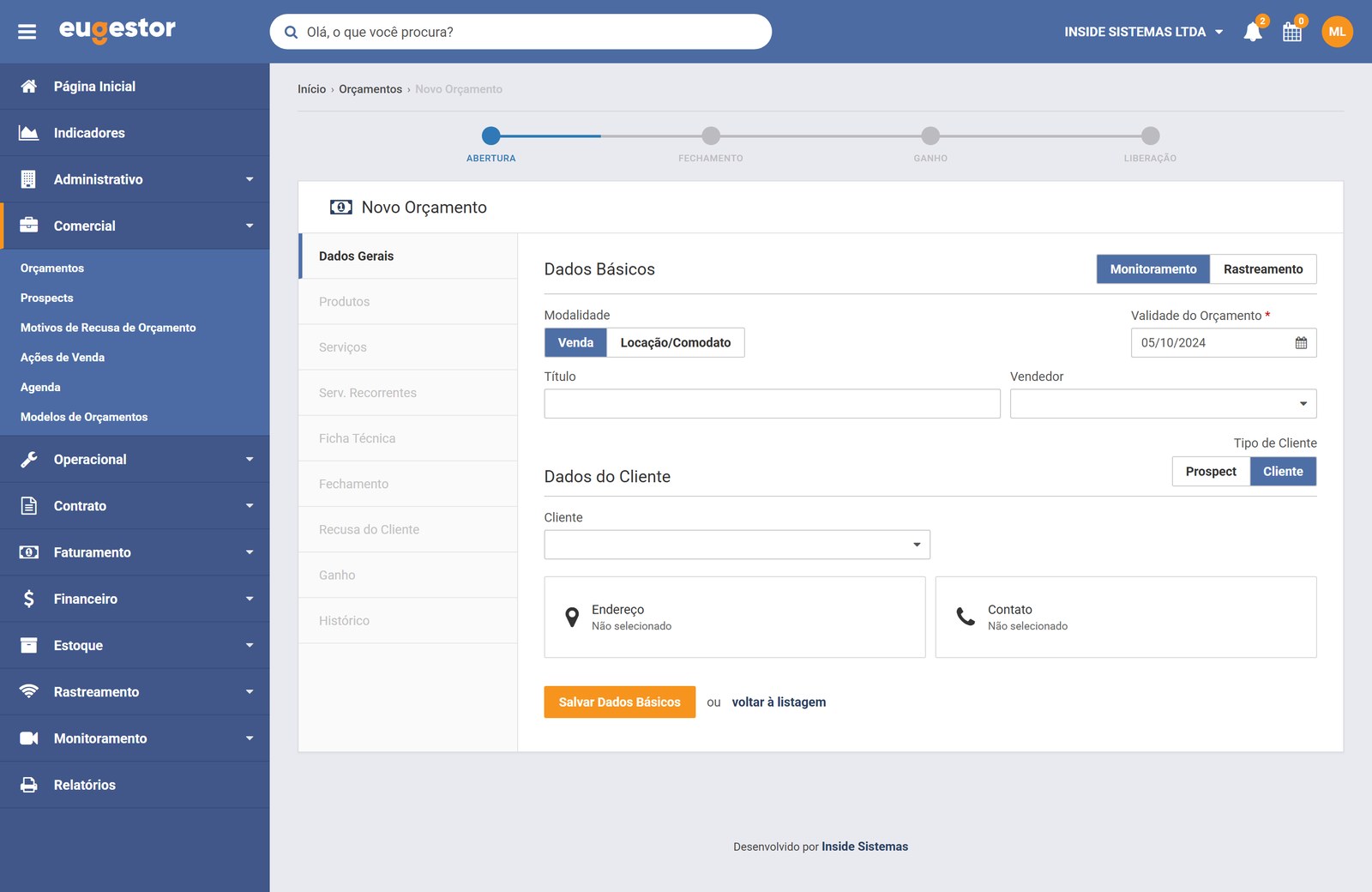
Drag the bar and compare the start of a quote: a form with ten sections became just what you need to begin.
- Only what you need to beginbefore: ten sections in one form
- One screen, one taskbefore: steps and sections at once
- Fields grouped by topicbefore: everything with the same weight
- Actions always in sightbefore: the button lost at the bottom
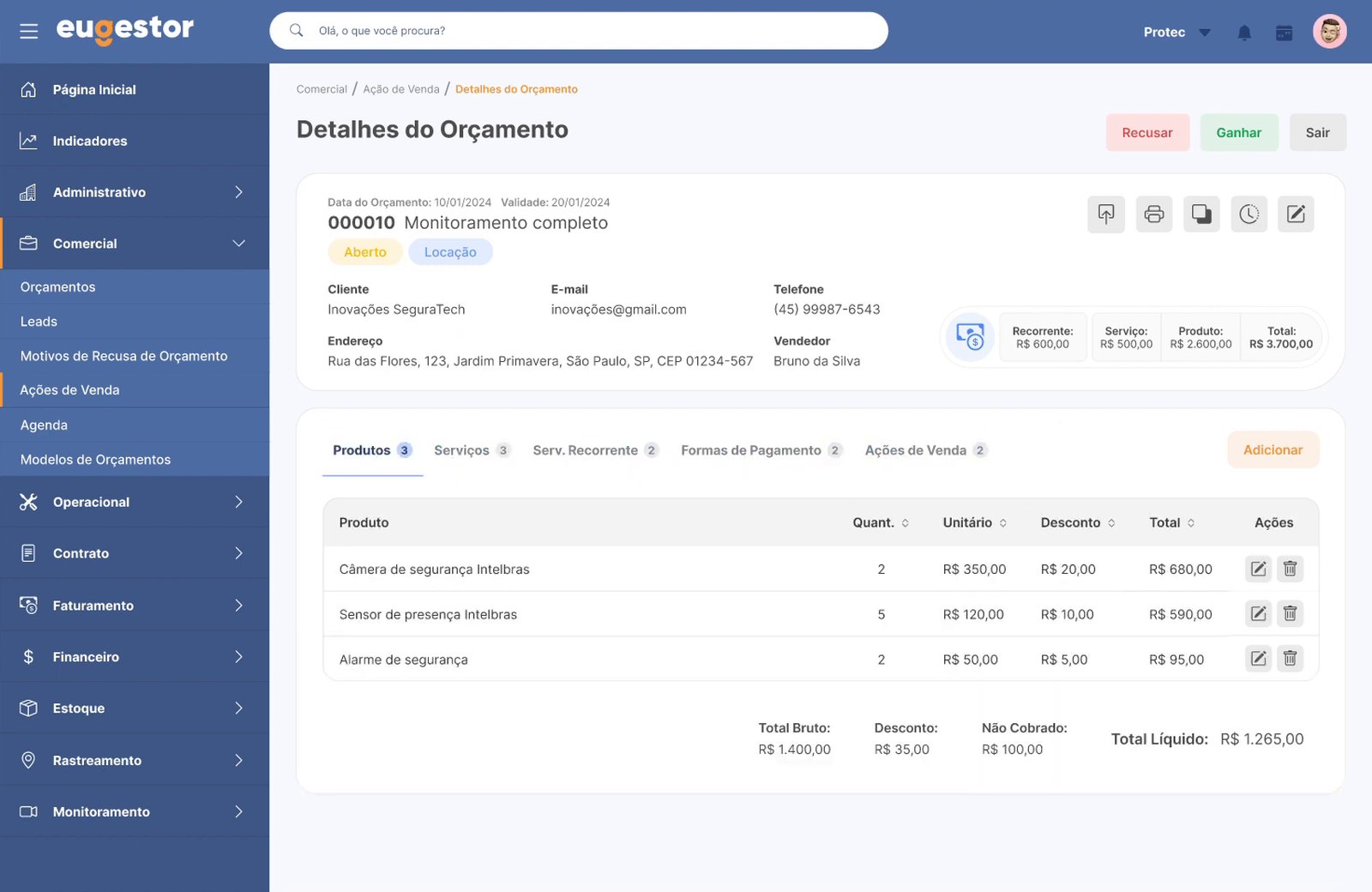
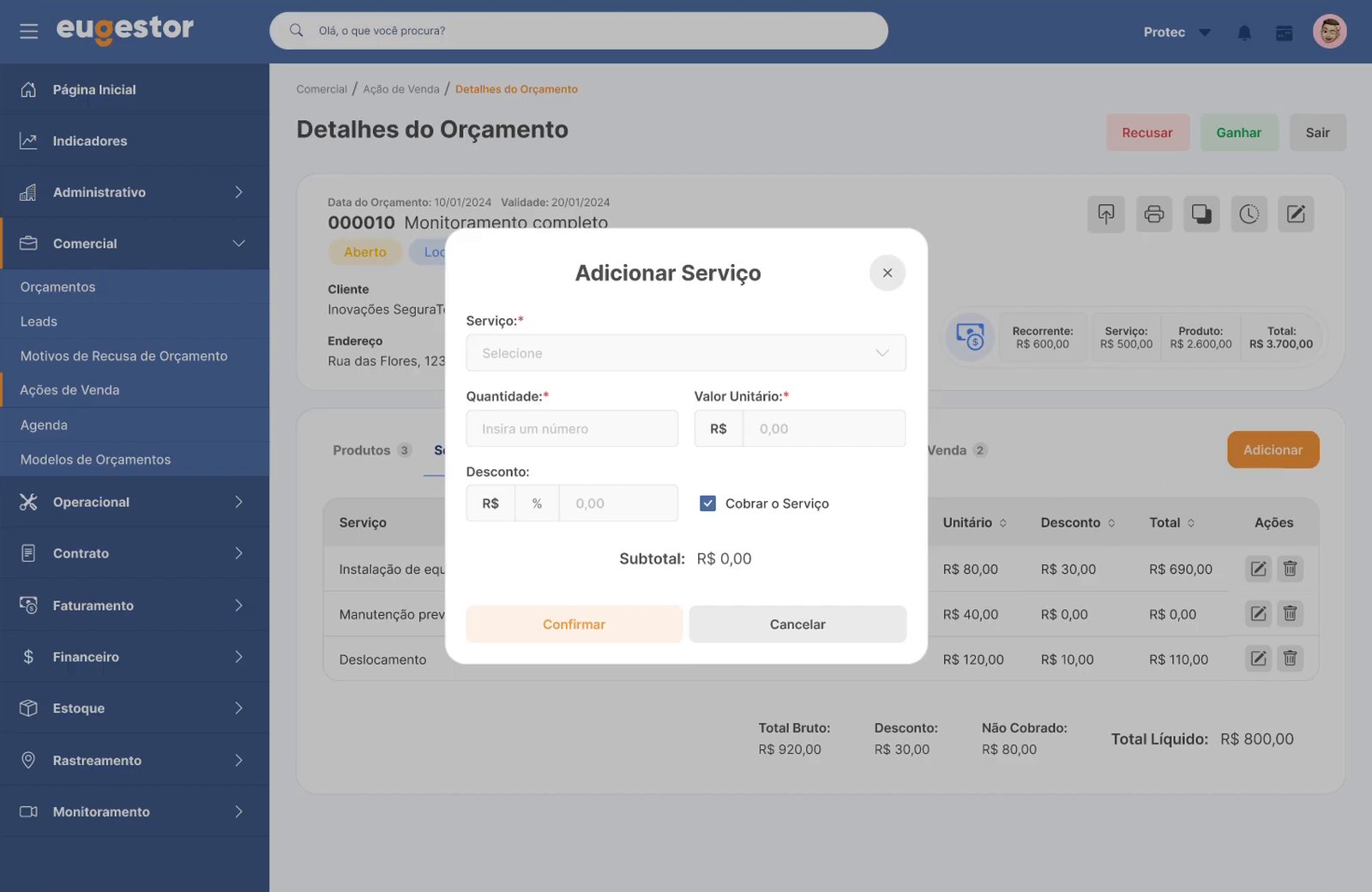
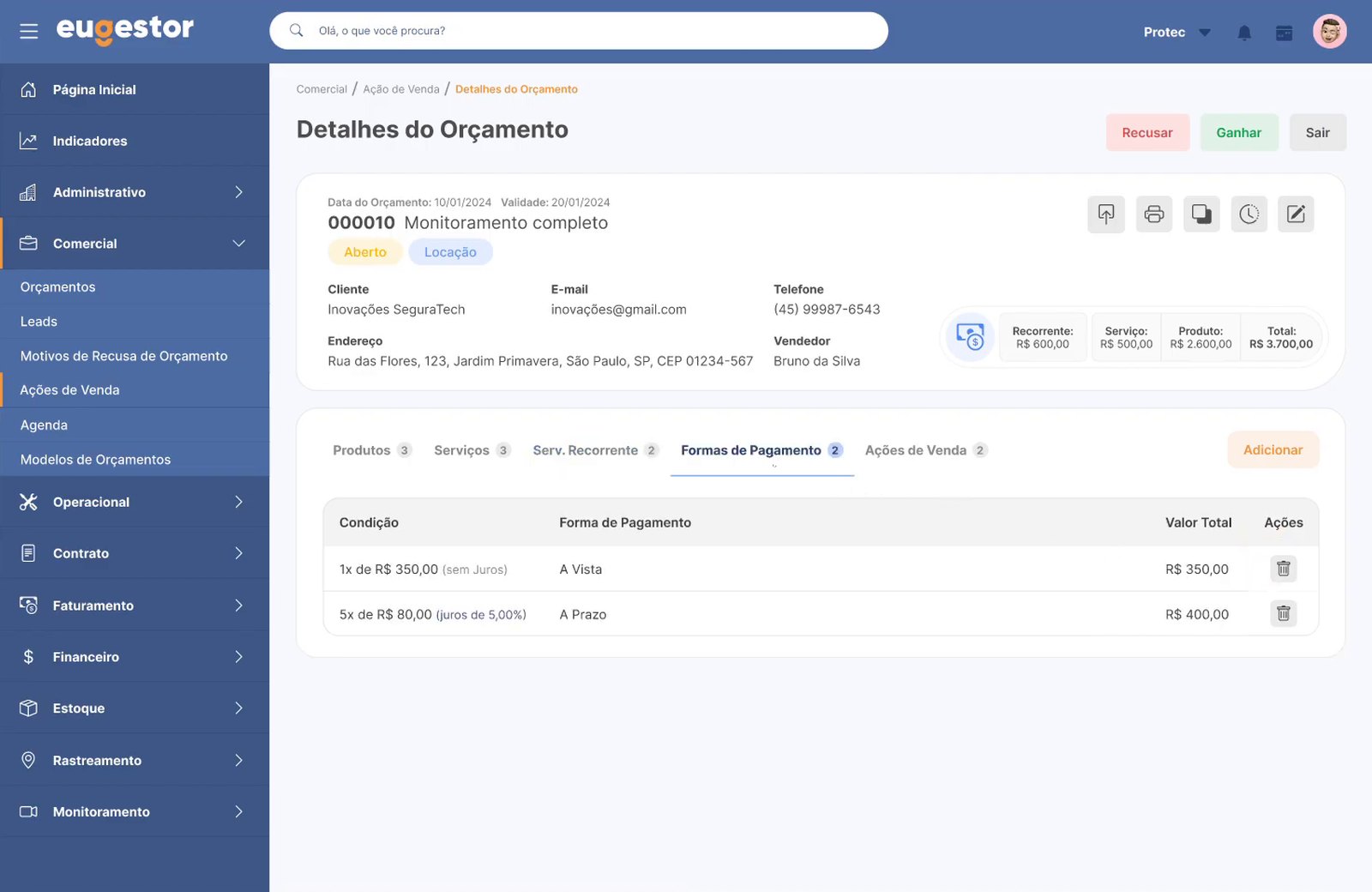
The whole quote, in the new look
Once saved, products, services and payment live in tabs, and each item comes in through a short window.
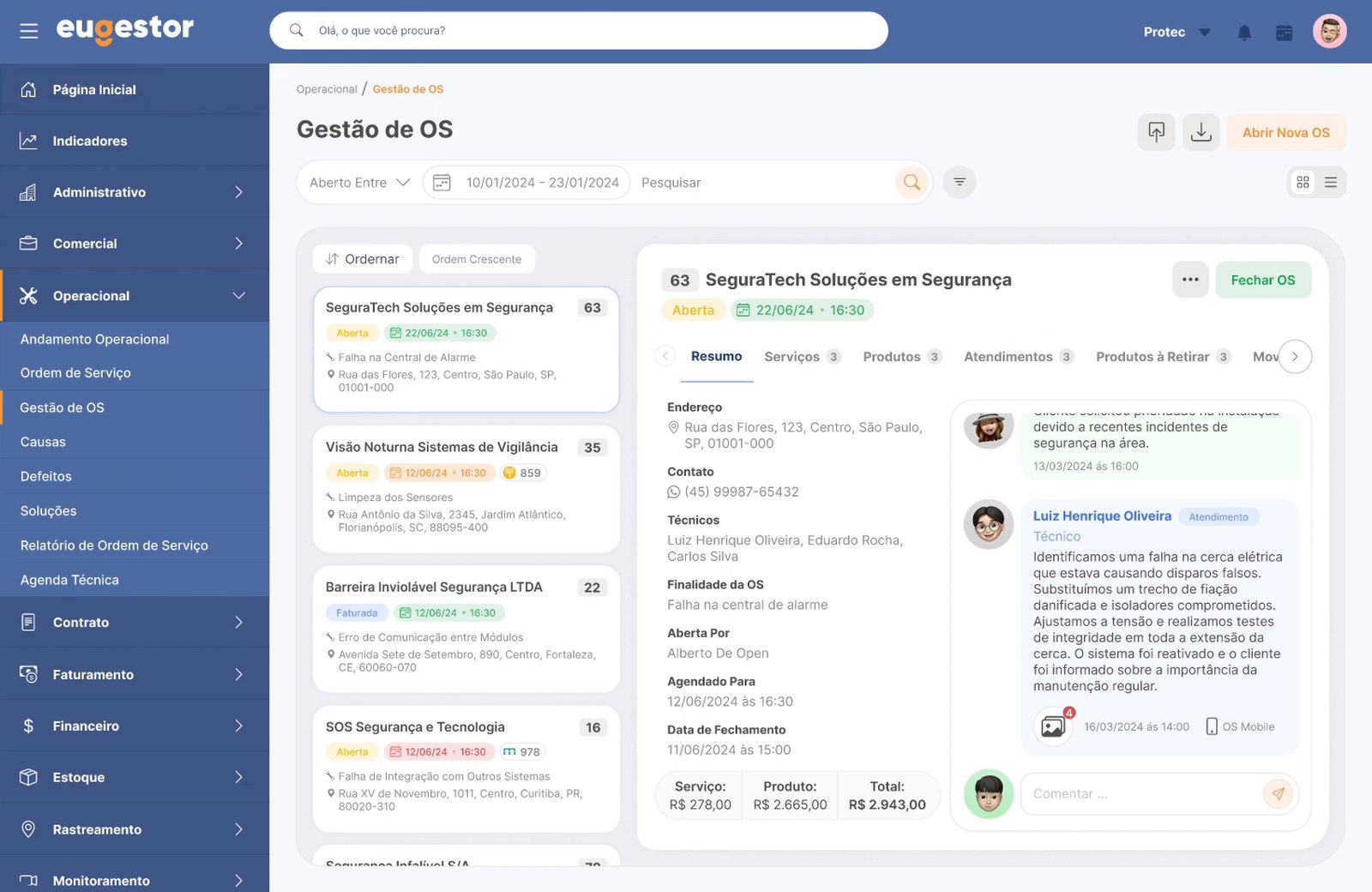
A service order from start to finish, on one screen
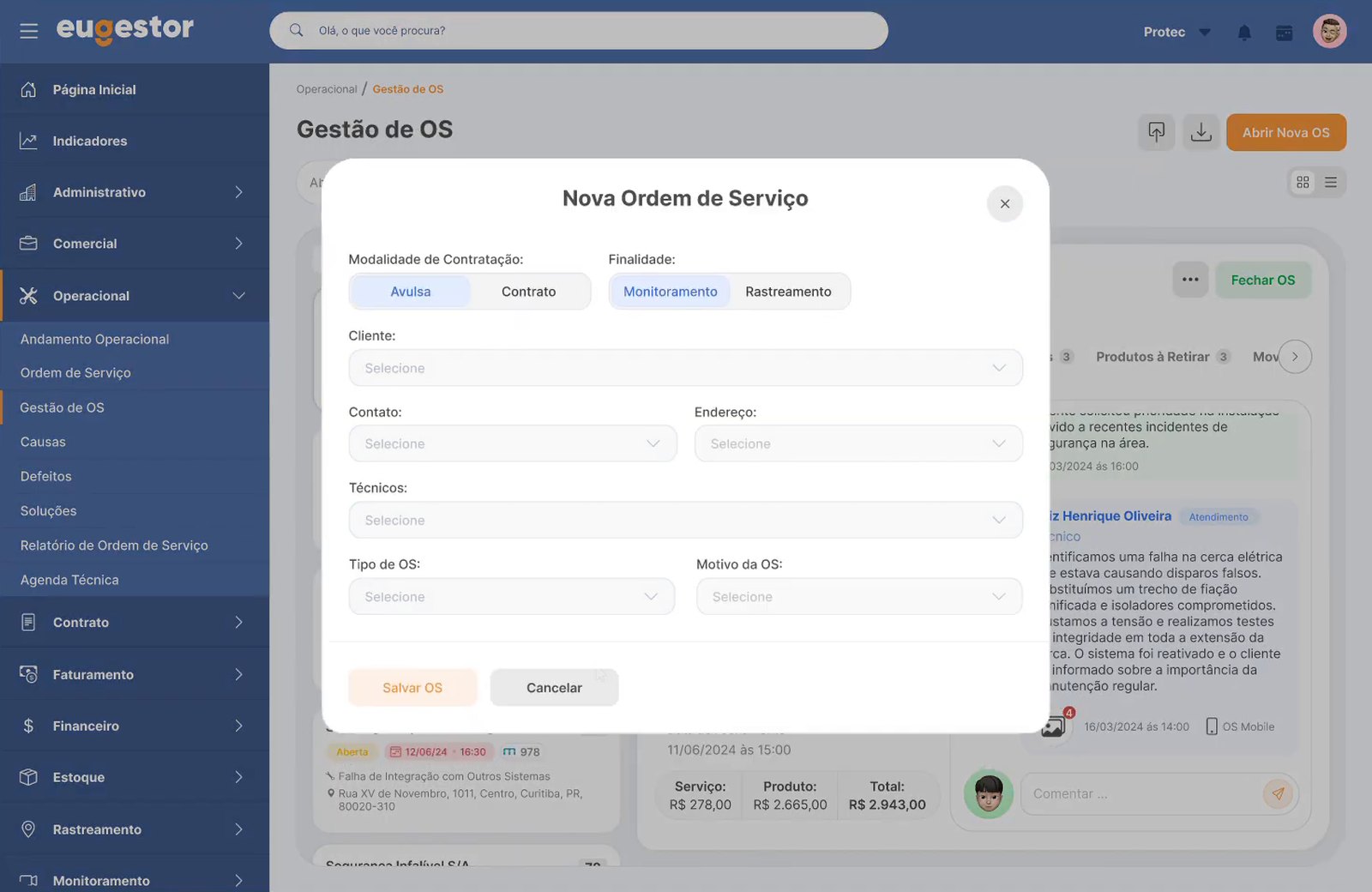
The list of orders sits next to the detail: services, visits and closing are one click away, without leaving the page.
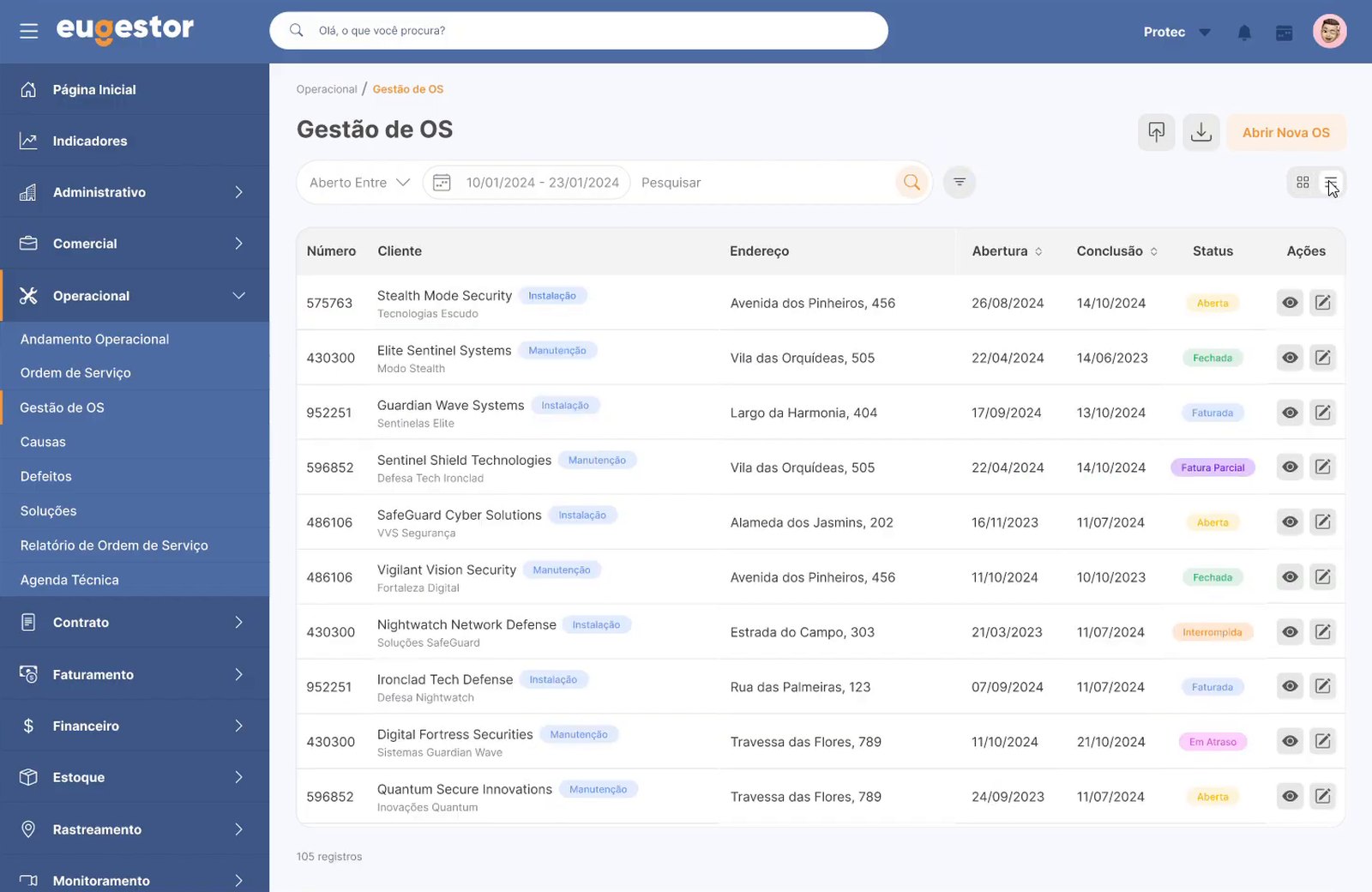
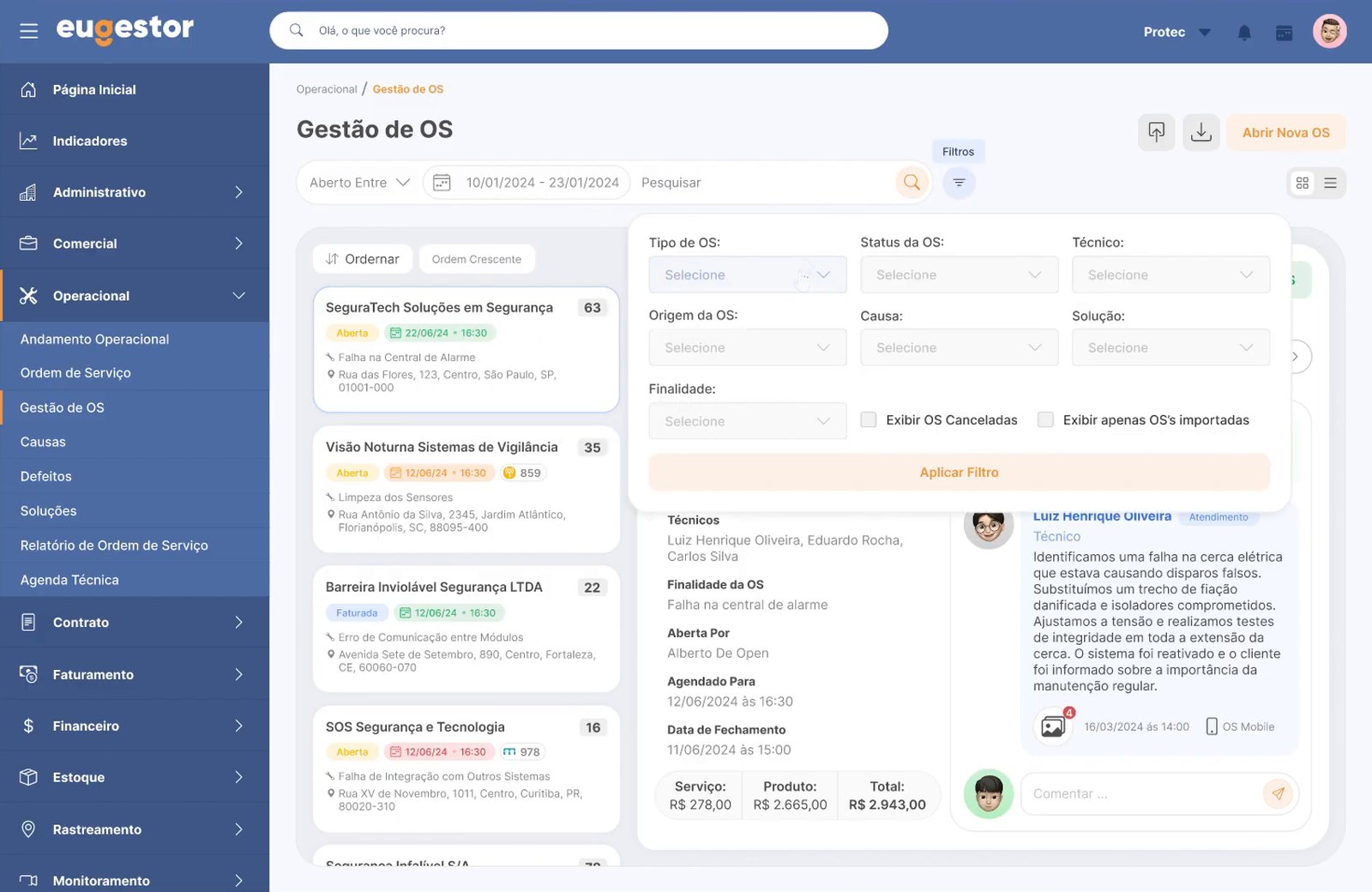
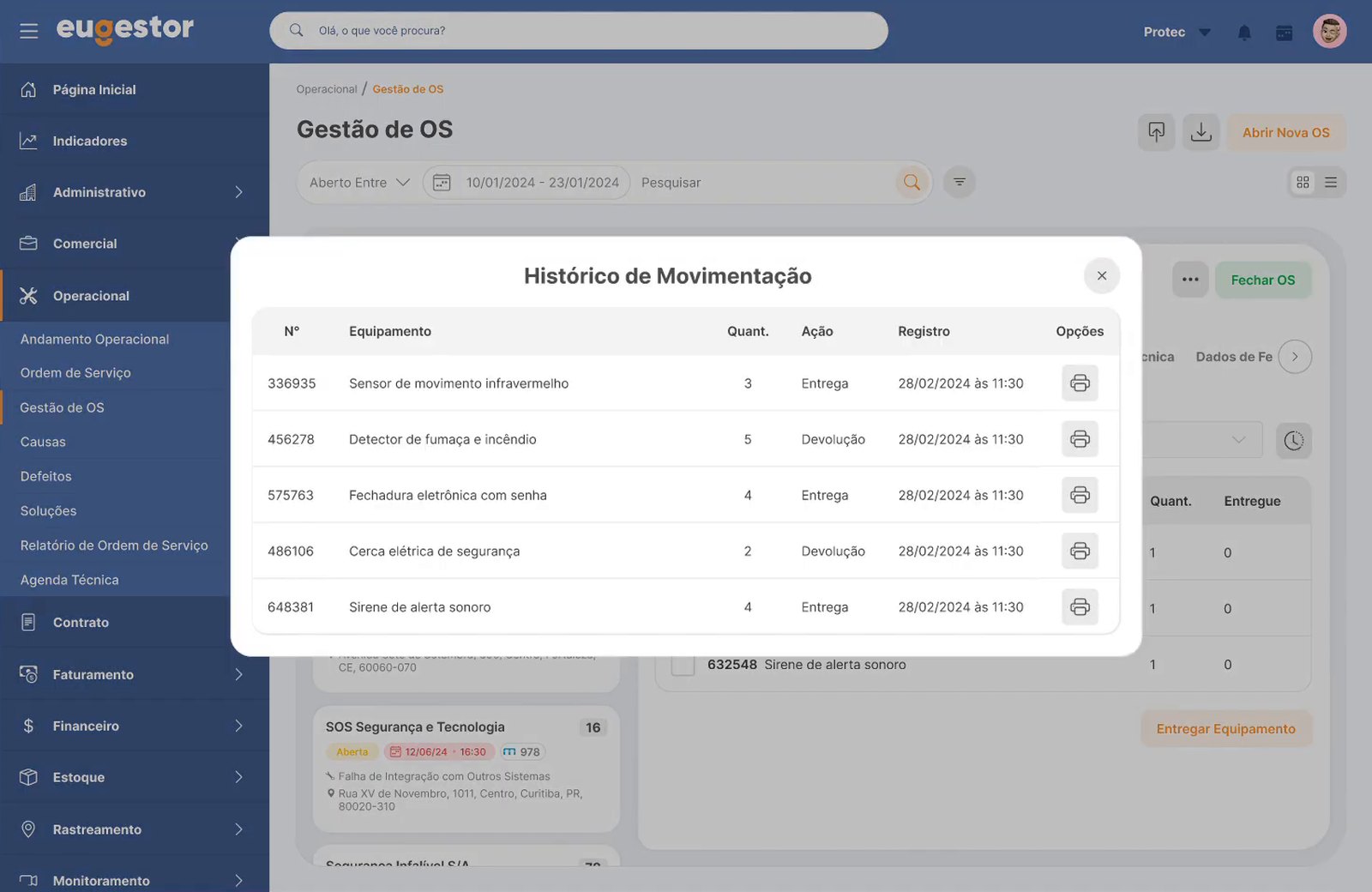
The other service order screens
Table view, filters, equipment history and opening a new order follow the same pattern.
Process
From a confusing form to a guided flow
- UnderstandA review of the old screens with the team, to list where people got lost and what generated the most support tickets.
- Map the flowThe path of every task, start to finish, to separate what is needed now from what can come later.
- Organize the formsFields were split by topic and by moment: the essentials first, the rest in tabs and short windows.
- Build a visual baseColors, buttons, fields and icons defined once and used on every screen, so the system speaks a single language.
- Prototype and deliverClickable prototypes, reviewed with the team, and a design package ready for development.
Impact
A clearer system, with fewer doubts day to day
- Short forms you can fill in without getting lost
- Fewer support tickets for simple tasks
- The same look and behavior on every screen
- A base ready to design the next screens faster
Learnings
What this project taught me
- A big form needs steps, not more spaceShowing everything at once helped no one. Splitting the work into moments made each screen shorter and let the system guide people, instead of expecting them to know where to start.
- Standardizing first speeds up every new screenWith colors, fields and buttons defined up front, each new screen came out faster and already consistent with the rest of the system.
- A system in use cannot stopThe new design rolled out gradually, without interrupting the clients who rely on the system every day.
Keep exploring
More work
More case studies, from management systems to apps. Drag sideways or use the arrows.